How to create a debug file
Who can create debug files
Only the server owner and WatchList Admins can manage debug sessions (start/stop/zip)
If you don’t see the Debug option (or get blocked), you’ll need the owner/admin to run the steps below.
Quick flow
Open Settings → Admin → Debug
Set Debug: Simple (or Trace if asked)
Start Debug → reproduce the issue → Stop Debug
Create Debug File → download ZIP from DM (or channel fallback)
Step-by-step How-To
1) Open the Debug Settings screen
Get to the WatchList Settings panel (however your server opens it), then:
Go to Admin
Tap Debug
If you’re not allowed, you’ll see an error like “Only the server owner and WatchList Admins…”
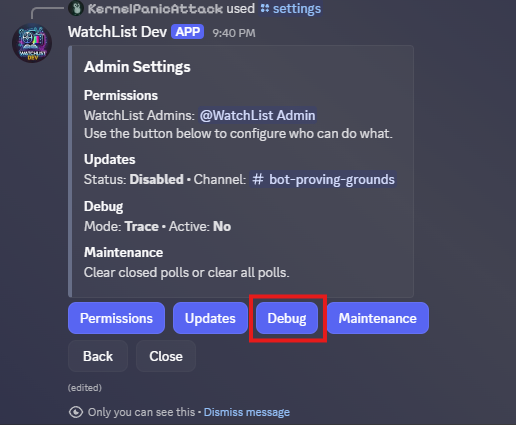
Debug button in /Settings > Admin screen
2) Set the debug mode (Off → Simple → Trace)
On the Debug Settings panel, tap the mode button:
Debug: Off → Simple → Trace (cycles in that order)
Practical guidance:
Simple: best default (less noisy, usually enough)
Trace: use when you’re trying to catch something subtle or when a dev asks for deeper detail
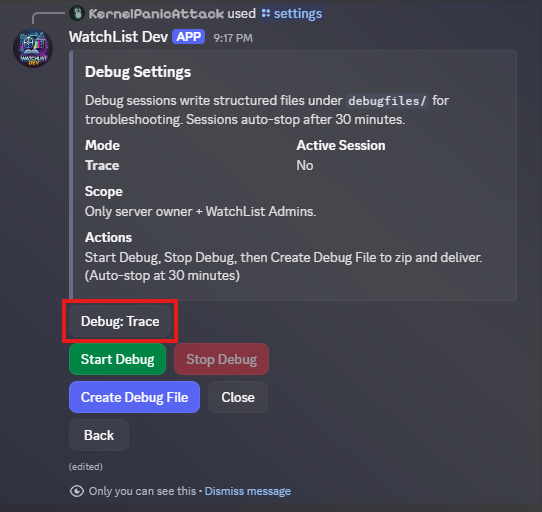
Debug Mode button
3) Start a debug session
Tap Start Debug
What you’ll notice:
Start Debug becomes disabled while a session is active
Stop Debug becomes enabled
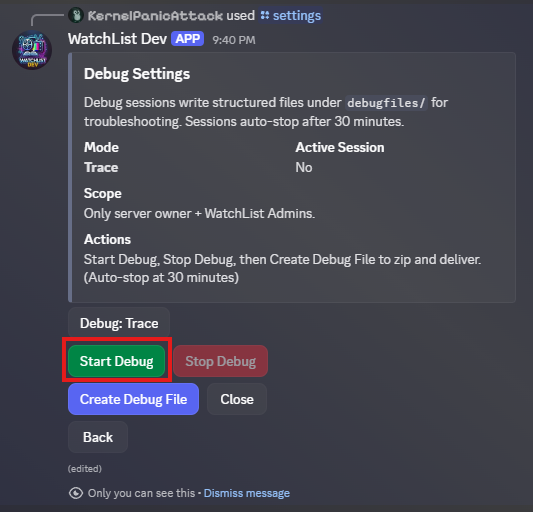
Start Debug button

Confirmation message for starting the debug session
4) Reproduce the problem
Do the exact actions that cause the bug (the more “same steps every time” you can do, the better).
If the issue involves a specific message/output, grab a screenshot of that too.
Good extras to capture (optional, but useful):
The message where the bug happens
Any error popup
The time you triggered it (roughly)
5) Stop the debug session
When the issue has occurred, go back to Debug Settings and tap Stop Debug.
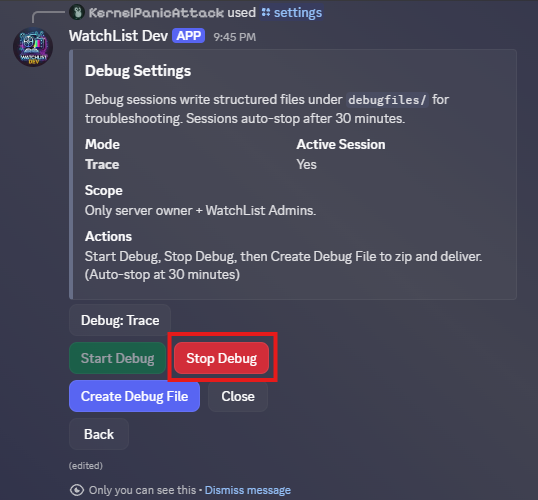
Stop Debug button

Confirmation message for stopping the debug session
6) Create the ZIP debug file
Tap Create Debug File.
What happens next:
If you forgot to stop debug, you’ll be told to stop firstwatchlist-dev
If there’s no completed session yet, you’ll get “No completed debug session found.”
If it succeeds, the bot zips the latest completed session and then delivers it
Delivery behavior:
First attempt: DM you the ZIP (“Debug file for <server name>”)
If DM fails: it posts the ZIP in the channel you clicked from
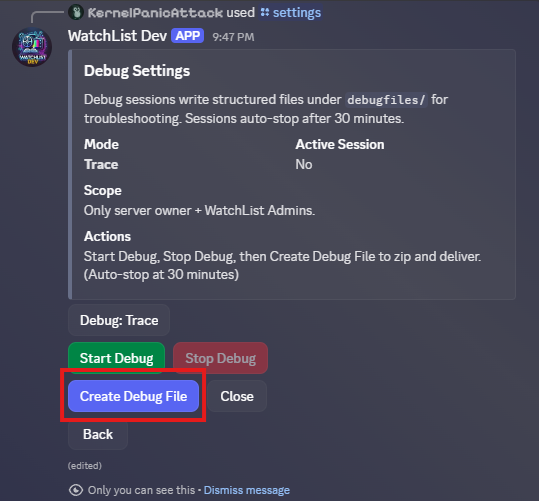
Create Debug File button

Confirmation message that debug file was delivered via DM
7) Download the ZIP from your DMs (preferred)
Check your DMs for a message from the bot with the ZIP attached.
If you don’t get a DM, look in the channel where you pressed Create Debug File (that’s the fallback).
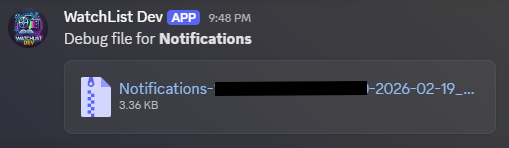
Debug File download message in DMs
Troubleshooting
“Stop Debug first before creating a debug file.”
You still have an active session → press Stop Debug then try again.“No completed debug session found.”
You didn’t complete a Start→Stop cycle yet (or it expired/wasn’t created) → Start Debug, reproduce, Stop Debug, then Create.“Created the zip, but failed to upload it (likely file size/perms).”
Discord upload failed (often file-size limits or missing permissions in that channel).
Try:Enabling DMs from server members so the bot can DM you the ZIP
Running Create Debug File in a channel where the bot can Send Messages and Attach Files
I can’t access Debug at all
You’re not server owner / not a WatchList Admin.
Ask the owner to grant you the WatchList Admin role, then retry.
What to send along with the ZIP
When you share the ZIP with the dev/admin, include:
What you were trying to do
The exact steps you took
What you expected vs what happened
Approximate time it occurred
The screenshots above (especially the Debug Settings screen + the DM with the ZIP)
